

 Save 10% off your first LabelValue order |
 How to Scale and Resize Objects in Adobe Illustrator
- Jul 10, 2019

Welcome to another installment of LabelValue.com’s Design Mini-Series. These design-focused blog posts are designed (see what we did there) to give you tips, tricks and valuable insight from our team of graphic designers here at LabelValue.
View all of our design mini-series:
- Tip 1: How to Trace Objects with the Pen Tool
- Tip 2: How to Equally Duplicate a Shape Around A Circle
- Tip 3: How to Link and Embed Images
- Tip 4: How to use the Align Tool in Adobe Illustrator
- Tip 5: How to Set up Document Bleeds in Adobe Illustrator
- Tip 6: How to Create a Clipping Mask using Adobe Illustrator
- Tip 7: How to Type on a Circle Using the Path Tool in Adobe Illustrator
- Tip 8: How to Use the Shape Builder Tool in Adobe Illustrator
Our design-focused tutorials are all about learning the "ins-and-outs" of the Adobe Creative Suite. Be sure to check back frequently, as we are always adding new design oriented content and posts.
Is Your Label Art Print-Ready?
You've done the research, created your product or service, and have made some really awesome labels or stickers for your business - hopefully with the help of our tutorials. Now you're ready to print, but you're not sure where to start. We know the process of printing your labels or stickers can be overwhelming. Dealing with the quote process, sending your files to print, waiting to hear back from sales people, and the agonizing wait of turnaround time.
Luckily for you, at LabelValue, you can skip all of that. With our online label tool InstaProof you can instantly quote, upload and order your labels. And when you place your order, you're instantly put into the production queue. No more waiting, or back and forth - just your labels, printed exactly the way you like them.
How Do I Scale and Resize Objects in Adobe Illustrator to a Specific Size?
In this tutorial, we will be going over one of the basic functions of Adobe Illustrator - scaling an object, image or artwork to a specific size. Adobe Illustrator is a vector-based design software. Meaning you can infinitely scale vector artwork without any loss in quality or resolution.
This differs from raster-based artwork like images, as these are pixel based. Pixel-based objects degrade in quality as they are enlarged, because you are stretching each pixel. Vector objects are created by using 2D points connected by paths, lines and curves. Each of these points are then plotted along an X and Y axis, which allows for the infinite scaling of the object.
We will show you how to scale and resize objects in Illustrator proportionate to the ratio of the original object. When scaling objects, you want to avoid skewing, or changing the original width x height ratio - unless absolutely necessary, as this changes the look and overall shape of the object from the original size.

STEP 1: It is important to note that Illustrator allows you to scale in a variety of units of measurement. In this tutorial we will be using inches, however you can also scale in whichever measurement best suits the project you are working on. To change your unit of measurement in Illustrator quickly, press CTRL + R (CMD + R on a Mac) to bring up your rulers tool. You will see it appear on the left and top side of your working area in Illustrator. To change the measurement, move your mouse over top of the ruler, and right click. Here you will see a pop-up appear of different units of measurement. Select your desired unit of measure, and now all your measurements will be in that unit. You can change this unit of measure at any time.

STEP 2: Select all parts of your artwork you want to scale with the selection tool, by and clicking and dragging. We are using a vector illustration of a dog and some text for our example. When scaling, you always want to work with vector artwork, as raster-based images will lose quality the larger you scale. Once you select all parts of your artwork you want to scale, right click and select group in the menu. Doing this makes all selected art into one “object” - keeping the proportions of your artwork maintained.
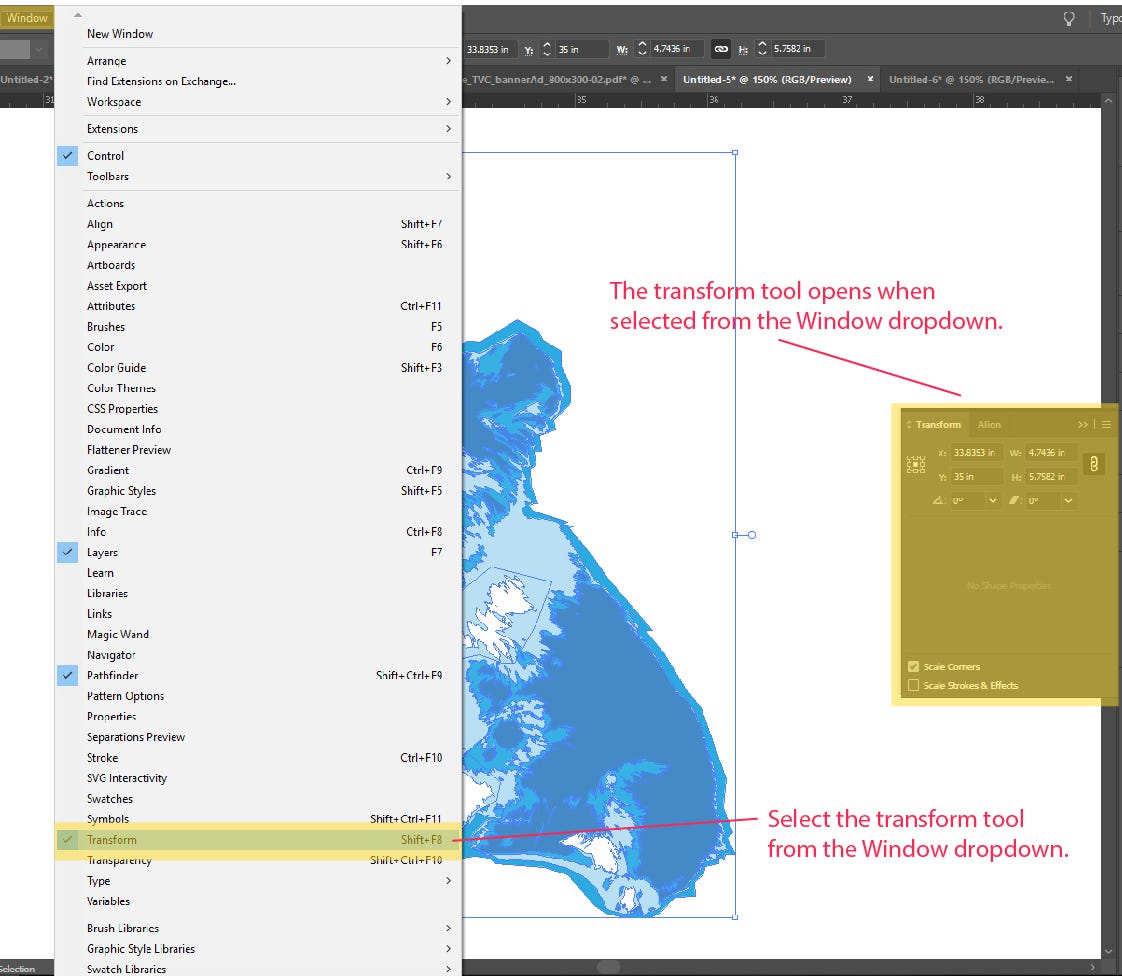
STEP 3: To scale to a certain size, we can use the transform tool. Go to your top tool bar, navigate to Window > Transform. This will open the transform tool.
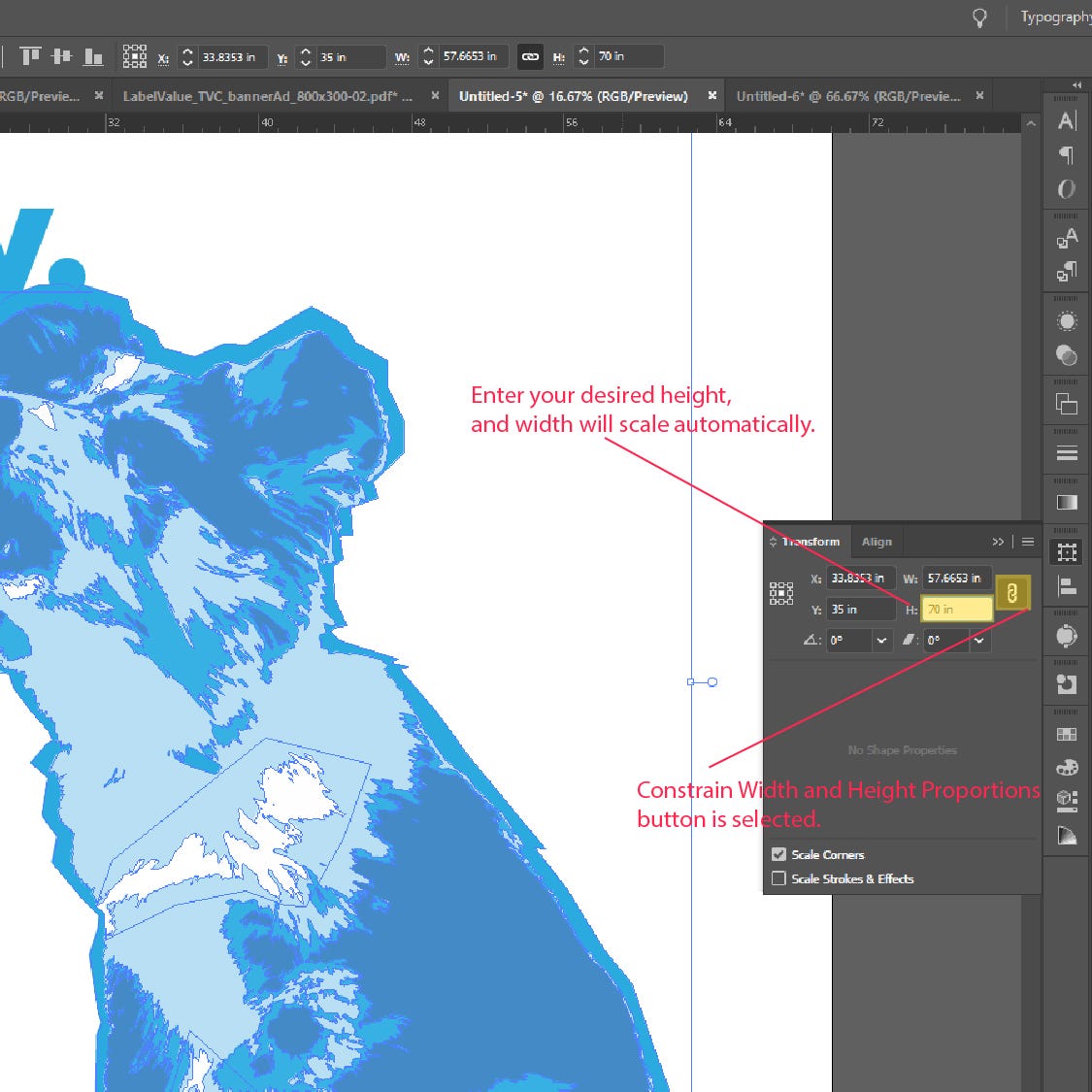
STEP 4: With your artwork you want to scale selected, navigate to the transform pop-up toolbar you just opened. Make sure the “Constrain Width and Height Proportions” button is activated. This makes sure when you scale your artwork, the dimensions remain proportionate. Enter your desired height, we will enter 70” here, and press enter. Your artwork then scale proportionately so your artwork remains correct.
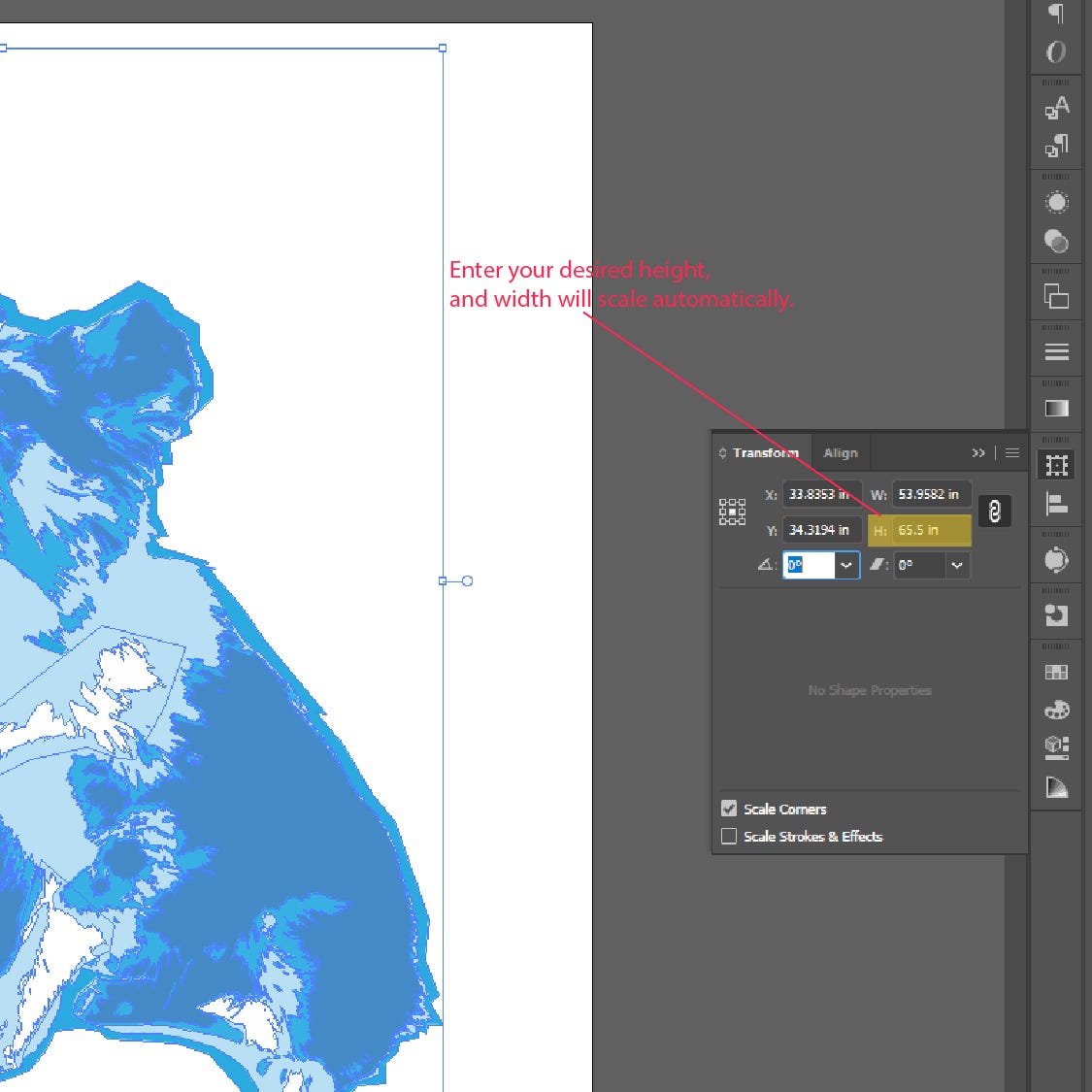
STEP 5: Scaling also works in reverse - meaning we can make vector based images smaller without losing quality also. Make a copy of your grouped object (CTRL + C), and paste it (CTRL + P) next to your original. To reduce the size of the image, we will use the transform tool again. Select your grouped artwork you just pasted into the document. To reduce in size, begin by navigating to the transform tool. Make sure the “Constrain Width and Height Proportions” button is active. Enter the desired height, here we will use 65.5 inches. Illustrator automatically scales the width down proportionate to the height.

Step 6: Please note, this step is not necessary, we are comparing our original enlarged object to our reduced object to show that our proportions have remained the same.

STEP 7: We can now use the align tools within Illustrator to confirm our proportions are scaled correctly on the resized version. To do this, use the selection tool and drag over both the original and resized version. Navigate to Window > and then select “Align”. This will open the align toolbar in Illustrator. Select Align to Artboard, and then align both grouped artworks to horizontal and vertical center. You can now visually see that the artwork has kept its original proportions and is smaller by half an inch.
While somewhat basic, knowing how to scale and resize objects in Adobe Illustrator to a specific size is extremely important. It allows you to maintain your artwork's original width and height proportions regardless of size without skewing or affecting the final design.
Have a question related to design or the Adobe Creative suite? Send us an email with your question to service@labelvalue.com.
Ready to turn your design into an eye-catching label or sticker?
Start On My Custom Labels