

 Save 10% off your first LabelValue order |
 5 Methods For Converting RGB to CMYK
- Oct 4, 2018
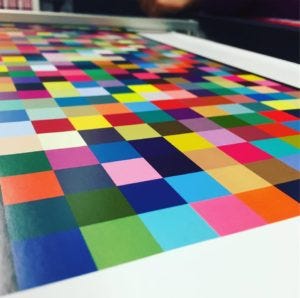
You can get any color and its variations by combining a set of fundamental colors using two methods: CMYK or RGB. CMYK stands for cyan, magenta, yellow and black (K denotes key plate in printing) while RGB stands for red, green and blue. All of these are fundamental colors but we use only CMYK in label printing while RGB is used in light-based technologies such as television, projection, and monitors for different devices.
Background: Differences between CMYK and RGB (jump to software specific guides)
Printed media requires CMYK to create a continuous spectrum of colors in spite of RGB being able to produce a greater number of colors. RGB uses additive colors. The additive model adds red, green, and blue light together to represent a variety of colors. This method might make them indistinctive when we print the respective colors on paper. In contrast, CMYK uses subtractive colors by mixing four ink colors. You start with pure white by not putting any ink on the paper and then mix the four colors until eventually, you reach a full black. That is how the CMYK method works.
When using RGB, you cannot start with black paper and then add light to get full white color. In a nutshell, that is why we use CMYK and not RGB to print on paper. On a smaller scale, your office printer uses the same principles of printing.
Factors to Consider when Converting RGB to CMYK
So you might design a book or any corporate document in RGB and have it look great on your screen, but it will be converted to CMYK before you are able to print it on paper.
When converting RGB to CMYK there are a few factors to consider. These include the format of your graphic design i.e. is it a vector or a raster graphic. Your selection of a suitable RGB to CMYK converter will also depend on the purpose of the graphic. It is one thing to print a corporate document while printing a full-size poster is a very different beast. In other words, you need to select a convertor that provides support for large-format printing or a tool that will produce the best result for a small-format printer.
Graphic Formats in Converting RGB to CMYK
Whatever tool you use for creating or designing images and graphics, there will be an original format and then an output format. You need to create your design using a professional app such as Illustrator or InDesign, where you can create vector images (using ai, eps, emf, pdf, and other similar formats). These formats can be saved as native pdf files that can be used to print your graphic.
The same applies to raster images, or bitmaps, that we edit in different file formats such as jpg, jpeg, png, gif, and others. You need to convert them to CMYK as well and save the file as a native pdf to retain your color profile.
In any case, you need a professional tool to both open and convert your graphics from RGB to CMYK. 
Top Methods & Softwares to Convert RGB to CMYK
Adobe has an extensive set of professional tools that offer both graphic design capabilities and exporting capabilities. To put it simply, Adobe design tools can convert RGB to CMYK and are the most commonly used design software. Microsoft Publisher, Corel Draw and Quark Xpress can also convert from RGB to CMYK.
Converting in Adobe Illustrator and InDesign
In Adobe InDesign and Adobe Illustrator, you have the option to “Convert to CMYK” and the only thing you need to do after the conversion is to save the file as a pdf for print media. When editing, you can also navigate the menu to File > Document Color Mode > CMYK to change the document as well.
One useful feature to take advantage of is to choose Adobe (ACE) as a conversion engine and check the box for Relative Colorimetric when asked what your intent is. This way you preserve all RGB colors that CMYK can reproduce accurately. You also replace any colors that CMYK cannot reproduce with their nearest match in CMYK.
Converting in Microsoft Publisher
If you use Microsoft Publisher 2003-2007 or later you need to go to the Commercial Print Settings and select Choose Color Model for converting your RGB design. When you choose Select Process Colors (CMYK), the software will convert the RGB colors to CMYK.
Converting in Adobe Photoshop
In Adobe Photoshop, you need to navigate the menu to the following location: Image > Mode > CMYK.
Converting in Corel Draw
You need to select each object you want to convert to CMYK when using Corel Draw. Then you have to pick the Fill tool and click on Fill Color Dialog to make sure the Color model is CMYK. You must select the Outline tool and click the Outline Color Dialog to make sure the Color model is CMYK when converting outline objects.
Converting in Quark Xpress
In Quark Xpress, you need to navigate the menu to Edit > Edit Colors > Show Colors in Use/Highlight Color > Edit. Then select your model as CMYK and deselect Spot color.
Final Thoughts
You should bear in mind that a number of popular apps cannot convert RGB to CMYK. These include Adobe Photoshop LE, Adobe PhotoDeluxe, Microsoft Word, Microsoft Excel, Microsoft PowerPoint, Microsoft Works, Microsoft PhotoDraw, and Picture It Publishing.
Also, a good rule of thumb when designing labels is to always start your design in CMYK color mode in any of the aforementioned programs.
Then, you only need to save the file in a format suitable for printing on paper and make a printing proof to make sure the completed print job will look as initially planned.

About the author
Ryan Stevens is a print expert who enjoys sharing industry knowledge with print enthusiasts all over the web. As CEO of Replica Printing Inc, Ryan is involved with all major printing styles and options on a daily basis.